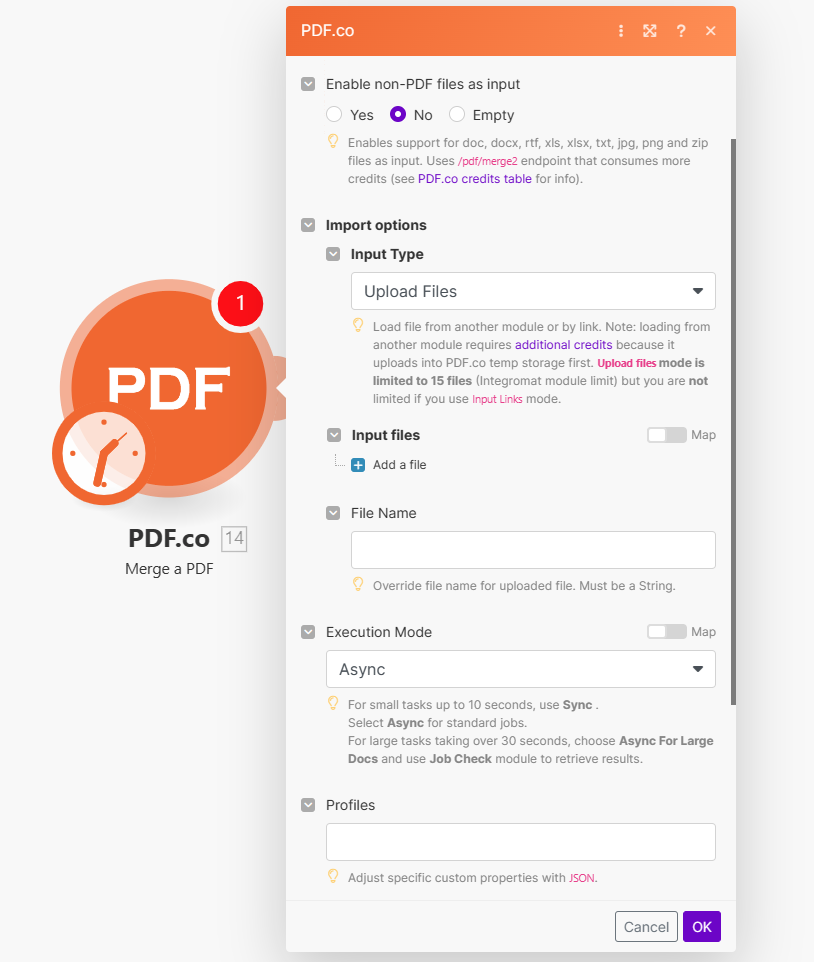
The total combined size of all input file URls must not exceed 2 GB. Requests that exceed this limit will not be processed.
The Make module doesn’t expose every PDF.co API parameter as a field. To pass a parameter that isn’t shown, use the Profiles field with std_params. Enable Advanced Settings to see it (see Profiles). See Standard Parameters for details.
Upload Files
Input Links
Integrating External File Sources
Streamline your Make workflows with external file sources like Google Drive and Dropbox using their unique actions. Discover efficient integration strategies in our guide: File Source Integrations in Make. Merging Files from Google Drive using PDF.co
To overcome issues such as restricted files or temporary blocking by Google Drive, use the Upload a File step in PDF.co before merging:
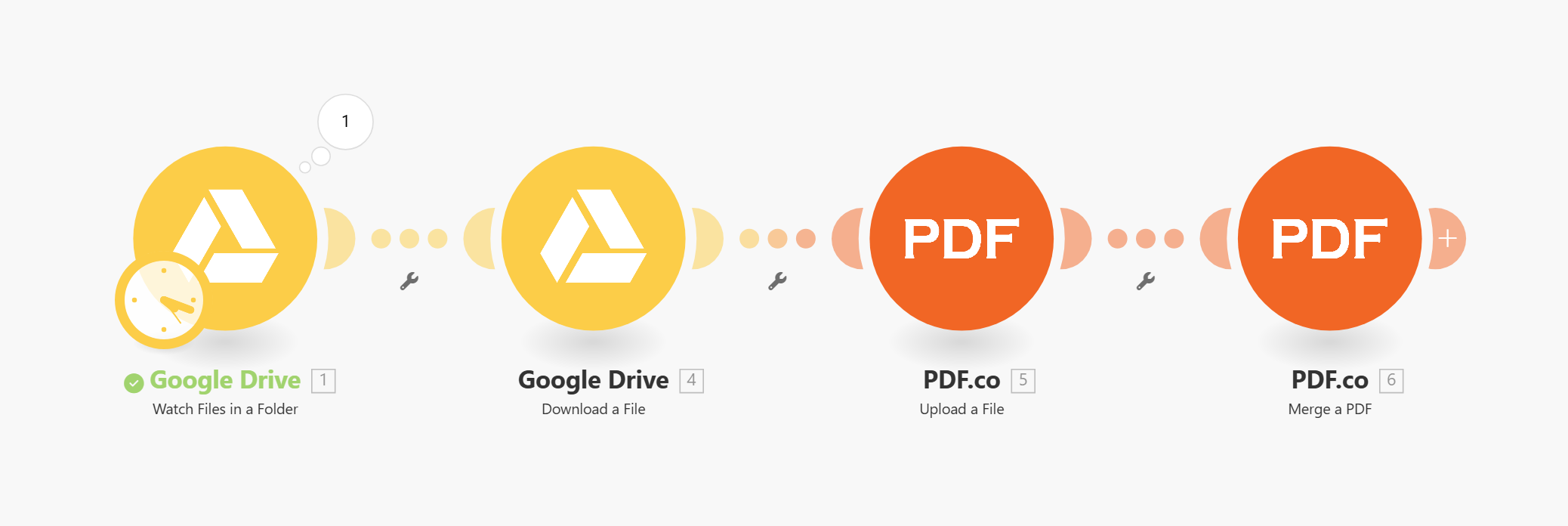
- Set up a Google Drive Trigger to
Watch Files in a Folder.
- Use Google Drive’s
Download a File action to fetch file binary data.
- Add the
Upload a File step in PDF.co to upload the file.
- Use the uploaded file URL in the
Merge PDF step.
Here’s the complete scenario with all steps:
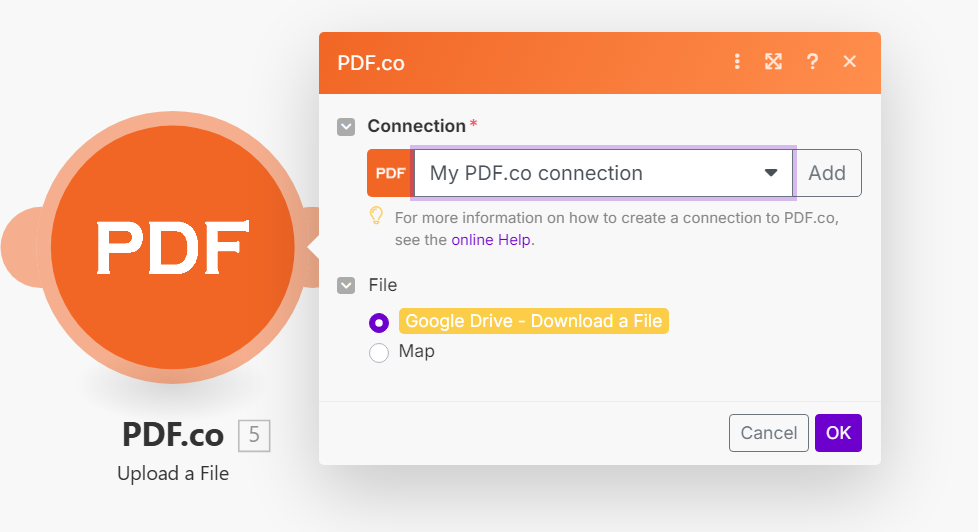
In the Upload a File step, use the file binary data from the Download a File action as shown below:
This approach ensures that the files are accessible and avoids issues related to file restrictions, rate limiting or temporary blocking by Google Drive.
Output
Profiles
To display the Profiles fields, you must enable Advanced Settings by clicking the toggle: You can use any regular API parameter from the API Reference within Make using the std_params feature in profiles. The std_params enables the definition of regular API parameters in a JSON format, See Standard Parameters for detailed documentation and examples.