

- Add text, images and signatures to a PDF
- Fill PDF form fields
- Create a new PDF from a template
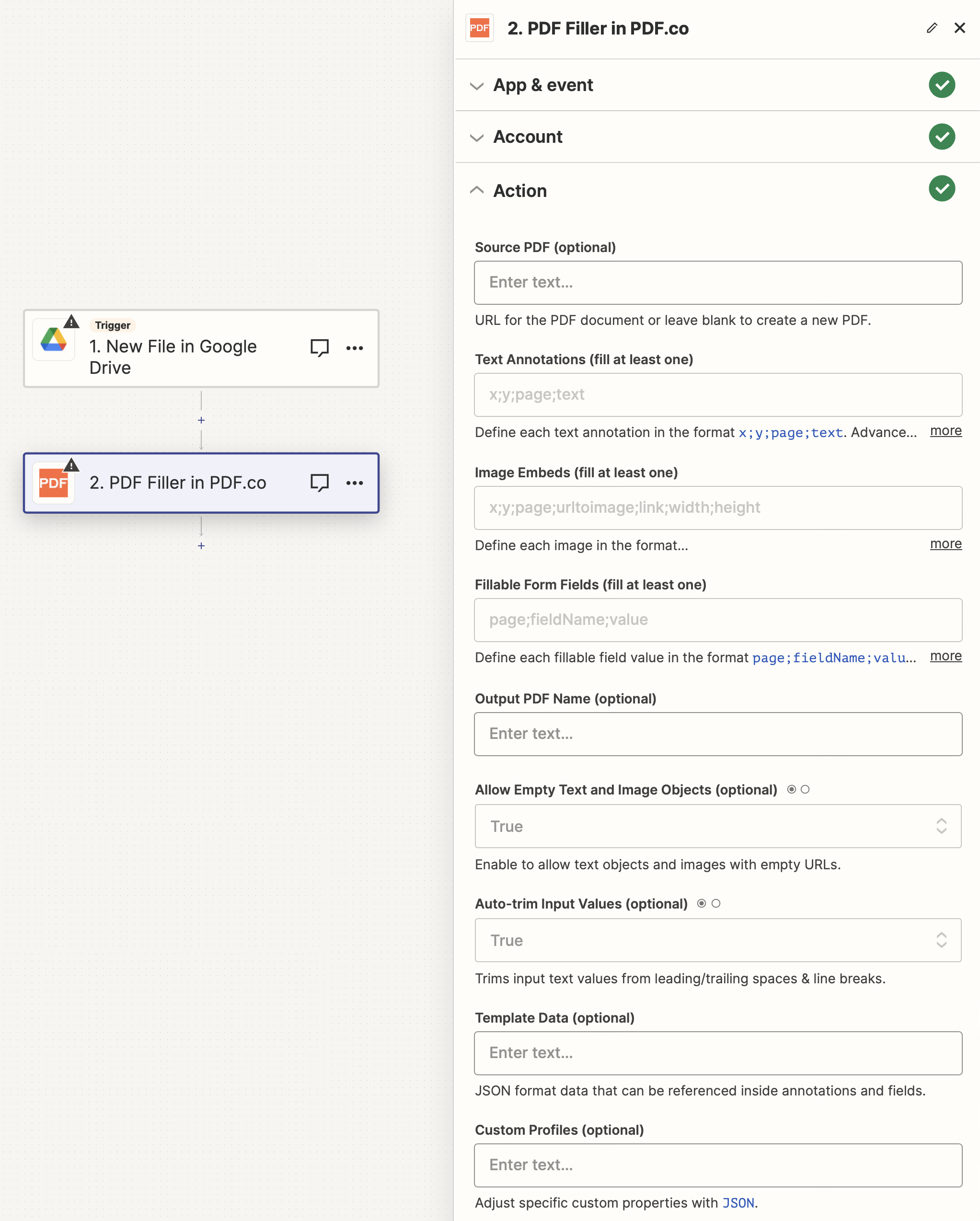
Input
Data Format and Examples
Text Annotations
This parameter represents one or more text objects to add to a PDF. Each text object is made of a parameter separated by the ; symbol. It uses the format:x;y;pages;text;fontSize;fontName;fontColor;link;transparent;width;height;alignment
EXAMPLE Sample code
Adds a text annotation, which links towww.pdf.co, to the 20,20 coordinate of all pages in a document (by using: 0-). The text annotation uses the Arial font in red (by using FF0000) with a font size of 24. It has a transparent background, a defined 300 by 200 bounding box and with text aligned to the right.EXAMPLE Sample code
Where24 is the font size. You can also add styles along with the font size using the following modifiers:+bold+italic+underline+strikeout
EXAMPLE Sample code
Another example withbold, italic, underline and strikeout styles would be as follows:EXAMPLE Sample code
To put multiple objects, just use the| separator between objects.\n or {{$$newLine}}.Image Embeds
Each image or PDF object can be defined as:x;y;pages;urlToImageOrPDF;linkToOpen;width;height
EXAMPLE Sample code
You can also use a base64 datauri embedded image or a
filetoken:// link to a file from PDF.co Built-In Files Storage.
Fillable Form Fields
To fill fields in a PDF form, use the formatpage;fieldName;value.
To define the font name, size and style for the form input, use the following schema:
page;fieldName;Field Text;size+bold+italic+underline+strikeout;FontName
EXAMPLE Sample code
Source PDF URL & Google
When using Google Drive, it’s typically recommended to choose the File option. For more advanced file integration techniques, see Integrating File Sources with pdf.co.
Output
Custom profiles
Use Custom Profiles to enhance your workflow with additional processing options. EnterJSON configuration to customize OCR settings, output format, text extraction methods, and more.
