

Common Use Cases
- Convert incoming PDFs to CSV or Excel for a spreadsheet or CRM
- Turn PDF pages into images for Slack, email, or a document gallery
- Extract PDF text or JSON in a Zap to populate another app
- Convert PDFs to HTML for publishing or further automation
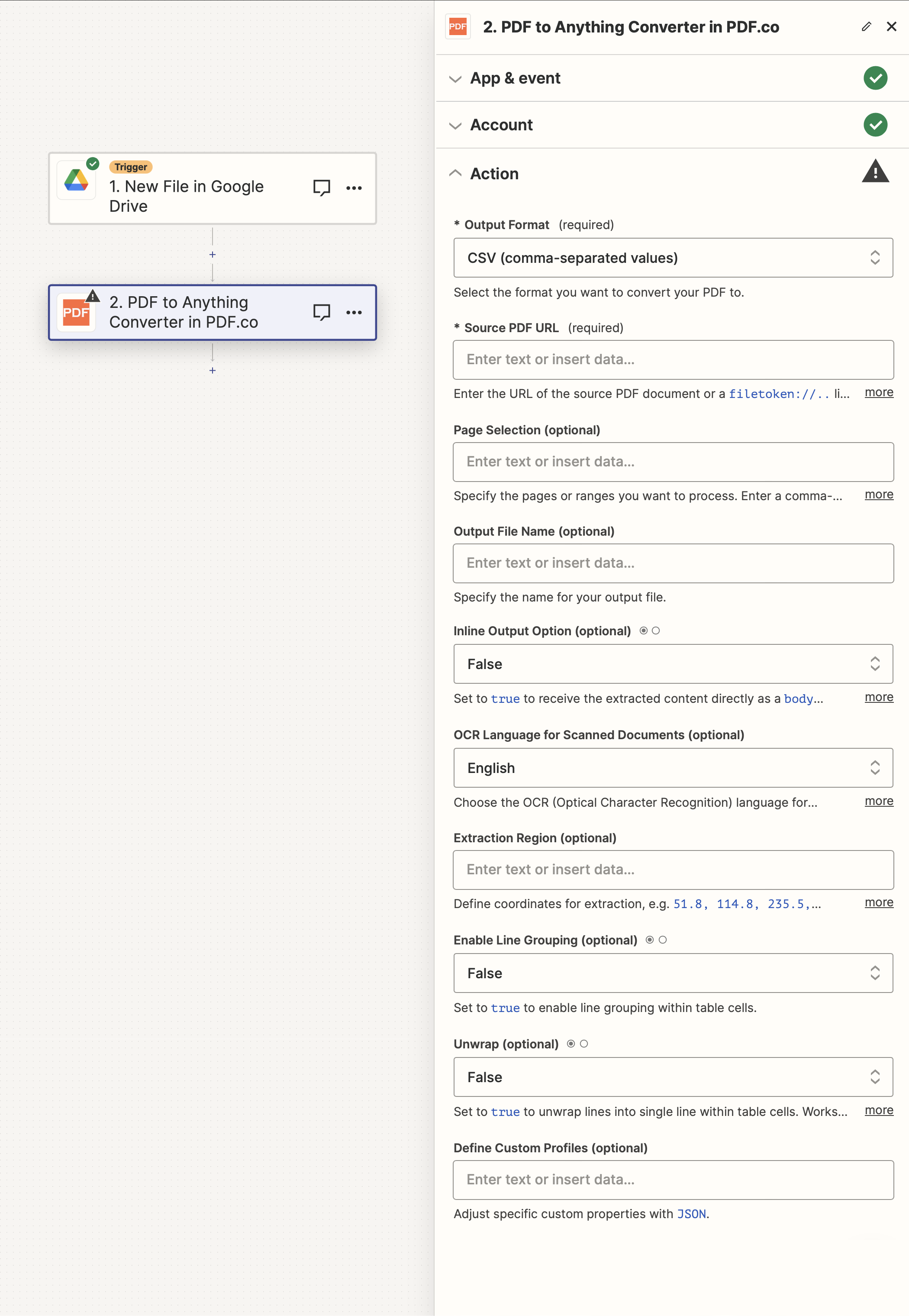
Input
The Zapier action doesn’t expose every PDF.co API parameter as a field. To pass a parameter that isn’t shown, use the Custom Profiles field with
std_params. See Standard Parameters.| Name | Description | Required |
|---|---|---|
| Output Format | Select the format you want to convert your PDF to from the drop down list in the workflow. | Yes |
| Source PDF URL | Provide the URL to the source PDF document, or a filetoken:// link from PDF.co Built-In Files Storage. If you use another cloud service such as Google Drive or Dropbox ensure the link is publicly accessible. | Yes |
| Page Selection | Specify the pages or ranges you want to process. Enter a comma-separated list (e.g., 0,1-2,5-). Leave blank to include all pages. Note: Page indexing starts at 0. | No |
| Output File Name | The output file name. If left blank then the name of the last file in the Source PDF URL list will be used. | No |
| Inline Output Option | Set to true to receive the extracted content directly as a body variable. By default, a link to the output file will be returned in the url object in the return JSON. | No |
| OCR Language for Scanned Documents | Choose the OCR (Optical Character Recognition) language for extracting text from scanned PDF, PNG, JPG documents. The default language is English. | No |
| Extraction Region | Define coordinates for extraction with a list of comma-separated x, y coordinate numbers, e.g, 0, 0, 100, 100 is a square 100 pixels in from the top left corner of a PDF document. | No |
| Enable Line Grouping | Set to true to enable line grouping within table cells. | No |
| Unwrap | Set to true to unwrap lines into single line within table cells. Works only when Enable Line Grouping is enabled. | No |
| Custom Profiles | A JSON string which adds options for the conversion process. See Custom Profiles for more. | No |
Source PDF URL & Google
When using Google Drive, it’s typically recommended to choose the File option. For more advanced file integration techniques, see Integrating File Sources with pdf.co.
Output
| Name | Description |
|---|---|
url | The temporary URL on the PDF.co file server. |
outputLinkValidTill | A timestamp which indicates how long the url will be available for. |
error | Details of any errors (if any). |
status | The response status code. If all good this will be 200. |
name | The name of the file. |
jobId | The unique identifier for the job. |
credits | The credits spent on the process. |
remainingCredits | The credits left on your account. |
duration | The time it took for the process. |
Custom profiles
Use Custom Profiles to enhance your workflow with additional processing options. EnterJSON configuration to customize OCR settings, output format, text extraction methods, and more.

Sample JSON
{ "ImageOptimizationFormat": "JPEG", "JPEGQuality": 25, "ResampleImages": true, "ResamplingResolution": 120, "GrayscaleImages": true }
You can use any regular API parameter from the API Reference within Zapier using the
std_params feature in profiles. The std_params enables the definition of regular API parameters in a JSON format, See Standard Parameters for detailed documentation and examples.| Parameter | Type | Default | Description | Available for |
|---|---|---|---|---|
outputDataFormat | string | - | If you require your output as base64 format, set this to base64 | PDF to JPG, PDF to PNG, PDF to WEBP, PDF to TIFF |
ColumnDetectionMode | string | Content Groups And Borders | Controls column detection/alignment in PDF table extraction. See Column Detection Mode for more information. | PDF to CSV, PDF to XLS |
OCRMode | string | Auto | Specifies how OCR (Optical Character Recognition) should process input content, offering various modes to tailor text extraction based on content type such as images, fonts, and vector graphics. For more information, see OCR Extraction Modes. | PDF to CSV, PDF to JSON, PDF to Text, PDF to XLS, PDF to XML, PDF to HTML, PDF to JPG, PDF to PNG, PDF to WEBP, PDF to TIFF |
OCRResolution | integer | 300 | Use this parameter to change the OCR resolution from the default 300 dpi. The range is from 72 to 1200 dpi. | PDF to CSV, PDF to JSON, PDF to Text, PDF to XLS, PDF to XML, PDF to HTML, PDF to JPG, PDF to PNG, PDF to WEBP, PDF to TIFF |
RotationAngle | integer | - | Use manual rotation to handle PDFs with vertically drawn text. Normally, OCR automatically detects page rotation in PDFs and extracts text accurately. However, in some cases, the PDF might not have an actual rotated page --- Rather, the text itself is drawn vertically. In such scenarios, auto-detection may fail. You can use this parameter to manually set the page rotation. The available angles are: 0, 1, 2, 3. | PDF to CSV, PDF to JSON, PDF to Text, PDF to XLS, PDF to XML, PDF to HTML, PDF to JPG, PDF to PNG, PDF to WEBP, PDF to TIFF |
LineGroupingMode | string | None | Controls line grouping in PDF text extraction. Modes: None (no grouping), GroupByRows (merge rows if all cells align), GroupByColumns (merge cells by column), JoinOrphanedRows (merge single-cell rows to above if no separator). | PDF to CSV, PDF to JSON, PDF to Text, PDF to XLS, PDF to XML, PDF to HTML, PDF to JPG, PDF to PNG, PDF to WEBP, PDF to TIFF |
ConsiderFontColors | boolean | false | Controls whether font colors should be considered when detecting table structure and merging text objects during PDF extraction. Set to true to consider font colors. | PDF to CSV, PDF to JSON, PDF to Text, PDF to XLS, PDF to XML, PDF to HTML, PDF to JPG, PDF to PNG, PDF to WEBP, PDF to TIFF |
DetectNewColumnBySpacesRatio | string | 1.2 | Controls how spaces between words are interpreted for column detection in PDF text extraction. It defines the ratio of space width that determines when text should be treated as being in separate columns. | PDF to CSV, PDF to JSON, PDF to Text, PDF to XLS, PDF to XML, PDF to HTML, PDF to JPG, PDF to PNG, PDF to WEBP, PDF to TIFF |
AutoAlignColumnsToHeader | boolean | true | Controls how columns are detected and aligned during table extraction from PDF documents. It affects both table structure detection and text extraction with formatting preservation. Set to true to automatically align columns to the header row. When set to true (default), the row with the most columns is used as the header, and all other rows are aligned to this structure --- ideal for well-structured tables. When set to false, columns are analyzed independently across all rows to build the structure, which works better for inconsistent or irregular tables. | PDF to CSV, PDF to JSON, PDF to Text, PDF to XLS, PDF to XML, PDF to HTML, PDF to JPG, PDF to PNG, PDF to WEBP, PDF to TIFF |
OCRImagePreprocessingFilters | object | - | Image preprocessing filters for OCR. Refer to OCRImagePreprocessingFilters for usage examples. | |
.AddGrayscale | boolean | false | Converts to grayscale before OCR. | PDF to CSV, PDF to JSON, PDF to Text, PDF to XLS, PDF to XML, PDF to HTML, PDF to JPG, PDF to PNG, PDF to WEBP, PDF to TIFF |
.AddGammaCorrection | array[string (float format)] | [“1.4”] | Adds a gamma correction filter. | PDF to CSV, PDF to JSON, PDF to Text, PDF to XLS, PDF to XML, PDF to HTML, PDF to JPG, PDF to PNG, PDF to WEBP, PDF to TIFF |
RenderTextObjects | boolean | true | Controls whether to render text objects in the PDF document. When set to true, it will render all text objects in the PDF document. Set to false to skip over text objects during rendering. See Disable Text Layer for more information. | PDF to JPG, PDF to PNG, PDF to WEBP, PDF to TIFF |
RenderImageObjects | boolean | true | Render image objects or not | PDF to JPG, PDF to PNG, PDF to WEBP |
RenderVectorObjects | boolean | true | Render vector objects or not | PDF to JPG, PDF to PNG, PDF to WEBP |
JPEGQuality | integer | 85 | See profiles.JPEGQuality | PDF to JPG |
WEBPQuality | integer | 75 | See profiles.WEBPQuality | PDF to WEBP |
TIFFCompression | string | LZW | See profiles.TIFFCompression | PDF to TIFF |
RenderingResolution | integer | 120 | See Set Image Resolution for more information. | PDF to JPG, PDF to PNG, PDF to WEBP, PDF to TIFF |
OptimizeImages | boolean | true | Some PDF may have high quality images used in the document and you may need to keep the quality of these images in the output HTML. By default PDF to HTML is optimizing images and you can easily turn it off. See Control Image Quality for more information. | PDF to HTML |
OutputPageWidth | integer | 1024 | Control page width (in pixels) for output HTML. Height is calculated and used according to the original pdf pages ratio. See Control Output Page Width for more information. | PDF to HTML |
AdditionalCssStyles | string | “ | To inject CSS for layout options in your HTML. Example: #canvas { zoom: 50%; }. Scale the div that contains all generated HTML pages by 50%. See Inject CSS for more information. | PDF to HTML |
SaveVectors | boolean | false | Controls whether to save vector graphics during PDF to HTML conversion. Set to true to save vector graphics. | PDF to CSV, PDF to JSON, PDF to XLS, PDF to XML |
SaveImages | string | None | Controls how images are saved during PDF to HTML conversion. Modes: None (no images), OuterFile (save to sub-folder), Embed (embed as Base64 data:URI). | PDF to CSV, PDF to JSON, PDF to XLS, PDF to XML, PDF to HTML |
ConsiderFontSizes | boolean | false | Set to true to this parameter makes the converter consider font size differences in document text when detecting and parsing table structures. This can be helpful in cases where tables are formatted using different font sizes to distinguish between headers, data cells, or other structural elements. | PDF to CSV, PDF to JSON, PDF to XLS, PDF to XML |
ExtractionArea | array[number] | - | Extract text in a specific area by defining the extraction area - set with points in the format [x, y, width, height]. | PDF to CSV, PDF to JSON, PDF to XLS, PDF to XML |
ExtractShadowLikeText | boolean | true | Controls whether to extract invisible text from a PDF document. Set to false to skip over invisible text during extraction. This is particularly useful when dealing with PDFs that contain hidden text layers or when you only want to extract visible content. When this value is set to false, OCRMode must be set to Auto to properly apply the shadow text filtering effect. | PDF to CSV, PDF to JSON, PDF to XLS, PDF to XML |
DataEncryptionAlgorithm | string | - | Controls the encryption algorithm used for data encryption. See User-Controlled Encryption for more information. The available algorithms are: AES128, AES192, AES256. | PDF to CSV, PDF to JSON, PDF to Text, PDF to XLS, PDF to XML, PDF to HTML, PDF to JPG, PDF to PNG, PDF to WEBP, PDF to TIFF |
DataEncryptionKey | string | - | Controls the encryption key used for data encryption. See User-Controlled Encryption for more information. | PDF to CSV, PDF to JSON, PDF to Text, PDF to XLS, PDF to XML, PDF to HTML, PDF to JPG, PDF to PNG, PDF to WEBP, PDF to TIFF |
DataEncryptionIV | string | - | Controls the encryption IV used for data encryption. See User-Controlled Encryption for more information. | PDF to CSV, PDF to JSON, PDF to Text, PDF to XLS, PDF to XML, PDF to HTML, PDF to JPG, PDF to PNG, PDF to WEBP, PDF to TIFF |
DataDecryptionAlgorithm | string | - | Controls the decryption algorithm used for data decryption. See User-Controlled Encryption for more information. The available algorithms are: AES128, AES192, AES256. | PDF to CSV, PDF to JSON, PDF to Text, PDF to XLS, PDF to XML, PDF to HTML, PDF to JPG, PDF to PNG, PDF to WEBP, PDF to TIFF |
DataDecryptionKey | string | - | Controls the decryption key used for data decryption. See User-Controlled Encryption for more information. | PDF to CSV, PDF to JSON, PDF to Text, PDF to XLS, PDF to XML, PDF to HTML, PDF to JPG, PDF to PNG, PDF to WEBP, PDF to TIFF |
DataDecryptionIV | string | - | Controls the decryption IV used for data decryption. See User-Controlled Encryption for more information. | PDF to CSV, PDF to JSON, PDF to Text, PDF to XLS, PDF to XML, PDF to HTML, PDF to JPG, PDF to PNG, PDF to WEBP, PDF to TIFF |
Column Detection Mode
This might be case when a document contains a number of overlapping invisible text and vector objects that affect column detection. In this case you may need to fix the wrongly positioned data. Set the options for your column detection via the followingprofiles parameters:
ColumnDetectionMode - available values:
ContentGroupsAndBorders(default, no need to specify)ContentGroupsBordersBorderedTablesContentGroupsAI
{
 "profiles": "{ 'ColumnDetectionMode': 'ContentGroups' }"
}
OCRImagePreprocessingFilters
To set image preprocessing filters, please use:
{
 "profiles": "{
    "ExtractShadowLikeText": false,
    "OCRMode": "Auto",
    "OCRImagePreprocessingFilters.AddGrayscale()": [],
    "OCRImagePreprocessingFilters.AddGammaCorrection()": [
        1.4
    ]
}"
}